







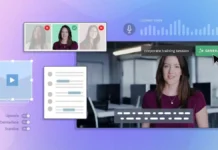

















Zoom Clips are best used for short, async video updates that do not need a live meeting. They work well for status updates, feedback, onboarding walkthroughs, bug explanations, and internal knowledge sharing. They save time when context matters but calendar coordination does not. They are less effective for sensitive conversations, complex decisions that need debate, or topics likely to create confusion without back-and-forth.
Quick Answer
- Use Zoom Clips when a message is easier to show than write.
- Use them for async updates that do not require immediate discussion.
- Use them to explain workflows, product changes, demos, and recorded feedback.
- Do not use them for performance reviews, conflict resolution, or high-stakes negotiation.
- They work best in distributed teams using Zoom, Slack, Notion, and project management tools.
What Is the User Intent Behind This Topic?
This topic has a use case intent. The reader is not asking what Zoom Clips are in theory. They want to know when using Zoom Clips makes sense, where they fit in a team workflow, and when another format is better.
When Should You Use Zoom Clips?
You should use Zoom Clips when speed, clarity, and async communication matter more than live interaction. A short recorded clip often carries more context than a Slack message and takes less coordination than a Zoom meeting.
This is especially true for remote teams, startup operators, product managers, customer success leads, and founders who repeat the same explanations across functions.
1. For status updates that do not need discussion
If your update is mostly one-way, a clip is usually better than a meeting. A founder can record a 3-minute weekly update on hiring, product milestones, runway, or GTM priorities without forcing the whole team onto a call.
This works because people can watch on their own time and replay important parts. It fails when the update includes unresolved decisions that depend on live alignment.
2. For product walkthroughs and feature demos
Zoom Clips are strong for showing a feature in motion. A product manager can record a short walkthrough of a new onboarding flow, dashboard change, or billing feature and share it with engineering, support, and marketing.
This works well when visual context matters. It breaks when the feature is still ambiguous and stakeholders need to challenge assumptions in real time.
3. For giving design, content, or engineering feedback
Recorded feedback is often faster than writing long comments. You can walk through a Figma prototype, landing page draft, analytics dashboard, or staging build while narrating what you see.
This is useful when feedback depends on sequence, tone, or visual detail. It is weaker when the recipient needs line-by-line structured comments for execution.
4. For onboarding and repeatable internal training
Startups often waste senior time repeating the same explanation. A 5-minute clip on how to use the CRM, submit expenses, review GitHub pull requests, or prepare investor reporting can reduce that repetition.
This works when the process is stable enough to reuse. It fails if workflows change every week and clips become outdated faster than people can trust them.
5. For customer handoffs and support explanations
A customer success manager can use Zoom Clips to explain account setup, show where to find key metrics, or walk through a known issue. That is often more effective than a long email.
This works best when the customer needs guidance but not a full meeting. It fails when the issue is urgent, emotional, or technically complex enough to require live troubleshooting.
6. For bug reports and QA communication
Instead of typing “the flow breaks after checkout,” a tester can record the bug, show the steps, and narrate the expected versus actual behavior. This reduces ambiguity for engineers.
It works because reproduction steps are visible. It fails if the team treats the clip as a substitute for proper issue documentation in Jira, Linear, or GitHub.
7. For cross-time-zone collaboration
Distributed teams in different time zones often over-meet or under-communicate. Zoom Clips help bridge that gap. A team lead in Berlin can record context for a team in New York or Singapore without waiting a full day for overlap.
This works when the receiving team has a habit of responding asynchronously. It fails when nobody owns the next step after watching.
Common Real-World Use Cases
| Use Case | Why Zoom Clips Work | Where They Fail |
|---|---|---|
| Founder weekly update | Fast distribution of context without scheduling a meeting | Fails if the team needs live Q&A on strategic changes |
| Product demo | Shows interface behavior better than text | Fails if stakeholders need to debate scope immediately |
| Async feedback | Captures tone and visual references clearly | Fails if detailed tracked comments are still required |
| Employee onboarding | Reusable explanation reduces repeated meetings | Fails when internal processes change too often |
| Customer support walkthrough | Explains steps clearly in a personal way | Fails for urgent or sensitive support issues |
| Bug reporting | Improves reproduction accuracy | Fails if no formal ticket is created afterward |
When Zoom Clips Work Best
- The topic is visual. Screen sharing makes the message easier to understand.
- The communication is one-to-many. One recording can replace several repeat explanations.
- The response does not need to be immediate. Async viewing is acceptable.
- The message benefits from tone. Video reduces misinterpretation compared to plain text.
- The team already works asynchronously. Clips fit best into mature remote workflows.
When Zoom Clips Are the Wrong Choice
- High-stakes conversations. Performance issues, layoffs, legal concerns, and conflict resolution should not be handled by clip.
- Topics requiring debate. If the goal is decision-making, live discussion is usually faster.
- Messages that should stay searchable as text. Policies, specs, and action items still need written documentation.
- Urgent blockers. If someone is waiting right now, use chat or a call.
- Long explanations with many branches. Clips lose value when they become mini-meetings nobody wants to watch.
Zoom Clips vs Other Communication Formats
| Format | Best For | Main Limitation |
|---|---|---|
| Zoom Clips | Short async visual updates and walkthroughs | Harder to scan than text |
| Live Zoom Meeting | Discussion, decision-making, sensitive topics | Requires scheduling and attendance |
| Slack Message | Fast coordination and simple updates | Lacks visual and tonal context |
| Formal communication and external documentation | Often too slow and too long | |
| Notion or Confluence Doc | Persistent knowledge and searchable processes | Takes more effort to create and maintain |
A Simple Decision Rule
Use this rule before recording:
- If it needs visual context, record a clip.
- If it needs fast alignment, start a live meeting.
- If it needs long-term reference, write a doc.
- If it needs quick action, send a message.
Workflow Examples for Teams
Product team workflow
- PM records a Zoom Clip showing a new feature
- Shares it in Slack with engineering, design, and support
- Adds written decisions to Notion or Linear
- Schedules a meeting only if blockers remain
Customer success workflow
- CSM records a setup walkthrough for a new client
- Shares the clip after kickoff
- Documents key next steps in email or CRM
- Books a live call only for open questions
Internal operations workflow
- Ops lead records an expense policy explanation
- Stores the clip in a team knowledge base
- Links the clip from onboarding materials
- Updates or re-records only when the process changes
Benefits of Using Zoom Clips
- Less meeting fatigue. Teams spend fewer hours on low-value sync calls.
- Better context. Voice and screen recording remove ambiguity.
- Higher reuse. One explanation can be shared multiple times.
- More flexibility. Team members consume updates on their own schedule.
- Faster feedback loops. People can respond without waiting for a calendar slot.
Trade-Offs and Limitations
Zoom Clips are not a universal replacement for meetings or documentation. Their biggest strength is speed, but speed can create messy communication if teams do not pair clips with clear follow-up.
The main trade-off is this: clips are rich in context but weak in structure. A clip can explain a feature well, but it is harder to search than a written spec. It can save a meeting today, but it may create confusion later if no summary exists.
For startups, this matters. In early-stage teams, speed usually wins. In scaling teams, lack of structure becomes expensive. That is why clips work best when they are part of a system, not the whole system.
Expert Insight: Ali Hajimohamadi
Most founders misuse async video by treating it as a meeting replacement. It is not. It is a context delivery tool. The strategic rule is simple: use Zoom Clips when you want to transfer understanding, not when you need commitment. Teams often watch a clip, feel informed, and still leave without a decision owner. That is where async communication quietly fails. The best operators pair every clip with one written outcome: decision, owner, or next step.
Best Practices for Using Zoom Clips Well
- Keep clips short, ideally under 5 minutes.
- Use a clear title so people know why they should watch.
- State the purpose in the first 20 seconds.
- End with a specific next step or request.
- Add a written summary in Slack, Notion, or your task manager.
- Do not stack multiple unrelated topics into one recording.
FAQ
Are Zoom Clips better than meetings?
They are better for one-way updates, demos, and repeatable explanations. Meetings are better for discussion, alignment, and sensitive issues.
How long should a Zoom Clip be?
Most clips should stay between 2 and 5 minutes. If it goes longer, the topic may need a doc or a live conversation.
Can Zoom Clips replace written documentation?
No. They can support documentation, but they should not replace searchable written records for policies, specs, or decisions.
Who should use Zoom Clips the most?
They are especially useful for remote teams, startup founders, product managers, customer success teams, support leads, and operations teams.
When should you avoid Zoom Clips?
Avoid them for conflict resolution, legal matters, personnel issues, urgent incidents, and topics that need immediate back-and-forth.
Are Zoom Clips useful for external communication?
Yes, in some cases. They work for onboarding, demos, and support walkthroughs. They are less suitable for high-pressure sales negotiation or sensitive customer escalation.
Final Summary
You should use Zoom Clips when a message is better shown than typed and does not require a live meeting. They are effective for product demos, async updates, onboarding, customer walkthroughs, and feedback. They fail when the topic is urgent, sensitive, or decision-heavy.
The best way to use them is not as a replacement for every meeting. Use them as a fast layer for context, then connect them to written summaries and clear ownership. That is where they create real leverage for modern teams.

